White spots on an LCD screen are not all the same fault. A tiny, fixed white or colored dot may be a bright pixel or subpixel. A larger pale patch may involve uneven illumination or physical damage. Surface marks and image-source problems also need to be ruled out before deciding what to repair.
Start by recording the spot's size, position and appearance on different backgrounds. Do not press, massage or heat the screen to try to remove it. A photograph or the shape of a spot alone cannot identify the failed internal component.
What kind of white spot are you seeing?
Use the appearance to choose a check, not to make a final diagnosis| Appearance | What to check |
|---|
| Tiny, sharp dot that stays in one position | Compare it on plain backgrounds. A bright pixel may look white; a bright subpixel can look red, green or blue. A dark or dead pixel is a different symptom. Check the manufacturer's pixel guidance. |
|---|
| Larger bright patch, cloudy area or bright edge | Evaluate brightness uniformity separately from individual pixels. Record any pressure, impact or mounting history, but do not assume a specific backlight or optical-layer failure from the shape alone. |
|---|
| Spot changes position with the picture or appears on one source only | Check the content and external signal path as well as the display. Compare supported sources or use the monitor's own diagnostic mode if available. |
|---|
For examples of pixel terminology, see Dell's display pixel guidelines. Its acceptance limits and warranty terms apply to the specified Dell products, not to every LCD panel.
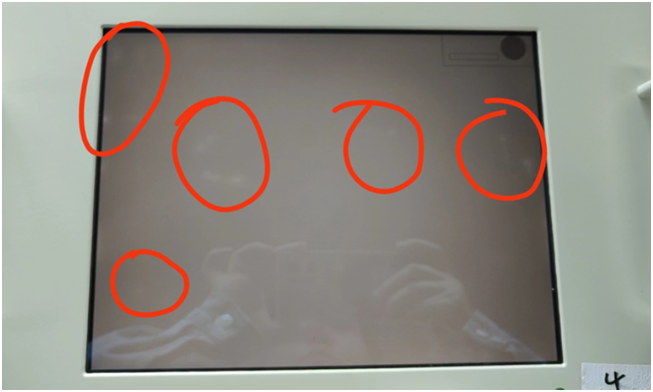
Photo retained from the original article: reported areas are circled in red. Reflections and camera exposure limit what can be concluded from this image. It is an example of a reported symptom, not a confirmed diagnosis.
Safe checks before arranging service
If your main concern is light leakage around the screen edges or corners,
read our
LCD light leakage and backlight bleed guide
for a more focused explanation and safe checks.
1. Check the surface without applying pressure
Turn the display off as directed by its manual and look for dust, smudges or reflections. Clean only by the manufacturer's approved method. Do not scrape a mark or spray liquid into the display. If it remains, stop cleaning rather than rubbing harder.
2. Compare plain backgrounds and normal content
View black, white, red, green and blue backgrounds briefly, then return to normal content. Record whether the spot stays at the same screen location and whether it is a sharp dot or a broader patch. The EIZO Monitor Test separates pixel and uniformity checks; these tests describe appearance, not the internal cause.
For broad bright areas, also compare the screen under normal room lighting at a comfortable brightness. Do not judge it only from a maximum-brightness photograph taken in a dark room. Dell's light-leakage assessment guide illustrates why viewing conditions matter; the acceptable result still depends on the exact product.
3. Use built-in diagnostics when the monitor supports them
Follow the instructions for your exact model. If the mark remains in the display's own test, seek display-side assessment. If it appears only with one external source, investigate that source, connection and supported signal settings too. Dell's diagnostic guide explains this distinction for its monitors.
A browser test image still travels through the computer and video connection; it is not the same as a monitor's built-in self-test. Do not treat either result alone as a component-level diagnosis. Bare LCD modules may not have built-in diagnostics or an on-screen menu.
4. Save useful evidence
Record the complete model number, when the problem began, its position and approximate size, the backgrounds used and the diagnostic results. Take an overall photo and a close-up without pushing on the screen. Note any impact, pressure, liquid exposure or installation change. For industrial equipment, follow the site's shutdown and maintenance procedures before changing connections.
Can white spots on an LCD screen be fixed?
That depends on the cause. Cleaning may remove a surface mark, and correcting a source problem may remove an image artifact. Neither is a general repair for a damaged panel. Do not assume a calibration setting, replacement cable or pixel-fixing video can repair a persistent physical bright patch.
Pressure can leave marks or damage an LCD. Keep hands and tools from pressing on the panel, do not heat it as a repair attempt, and leave internal inspection to qualified service personnel. These precautions are consistent with EIZO's handling and service safety instructions; follow the manual for your own equipment.
Contact the manufacturer or seller if the mark persists in diagnostics, is worsening or affects normal use. If there is cracked glass, liquid entry, smoke or a burning smell, stop using the equipment and follow its safety procedure. Do not open the display or attempt internal repairs yourself, even after disconnecting power. Ask about the applicable service and warranty process; there is no single pixel-count allowance for every product.
Need a replacement LCD panel for industrial equipment?
For panel selection or sourcing, send the full model code and suffix, symptom photos, diagnostic results, application, required quantity and delivery country. Include interface and installation details if a replacement is being considered.
Browse AUO industrial LCD panels as a starting point. The same size does not establish compatibility: interface, pinout, power, timing, backlight requirements and mounting dimensions need model-specific review.
Request an industrial LCD selection review
This is a panel selection and supply enquiry, not a confirmed diagnosis or a promise of complete-monitor repair. Availability, price and lead time are confirmed individually.